FlowForge Manual
CHAPTER 09 ENThe Cockpit — A Complete Reference
Every screen, every pane, and every keyboard shortcut of the FlowForge terminal cockpit — including talking to ACE by voice from any screen.
The Cockpit — A Complete Reference
Chapter 7 introduced the cockpit as a place you sit. This chapter is the reference: every screen it can show, every pane on those screens, and every keyboard shortcut — including the one that lets you talk to ACE out loud from anywhere in the product.
Launch it from any FlowForge project:
flowforge tuiThe cockpit is a full-screen terminal application — FlowForge’s flagship surface. You never leave it to do the day’s work: you spawn workers, watch them run, read and ratify documents, merge pull requests, check your billing, and talk to ACE, all from the same screen.
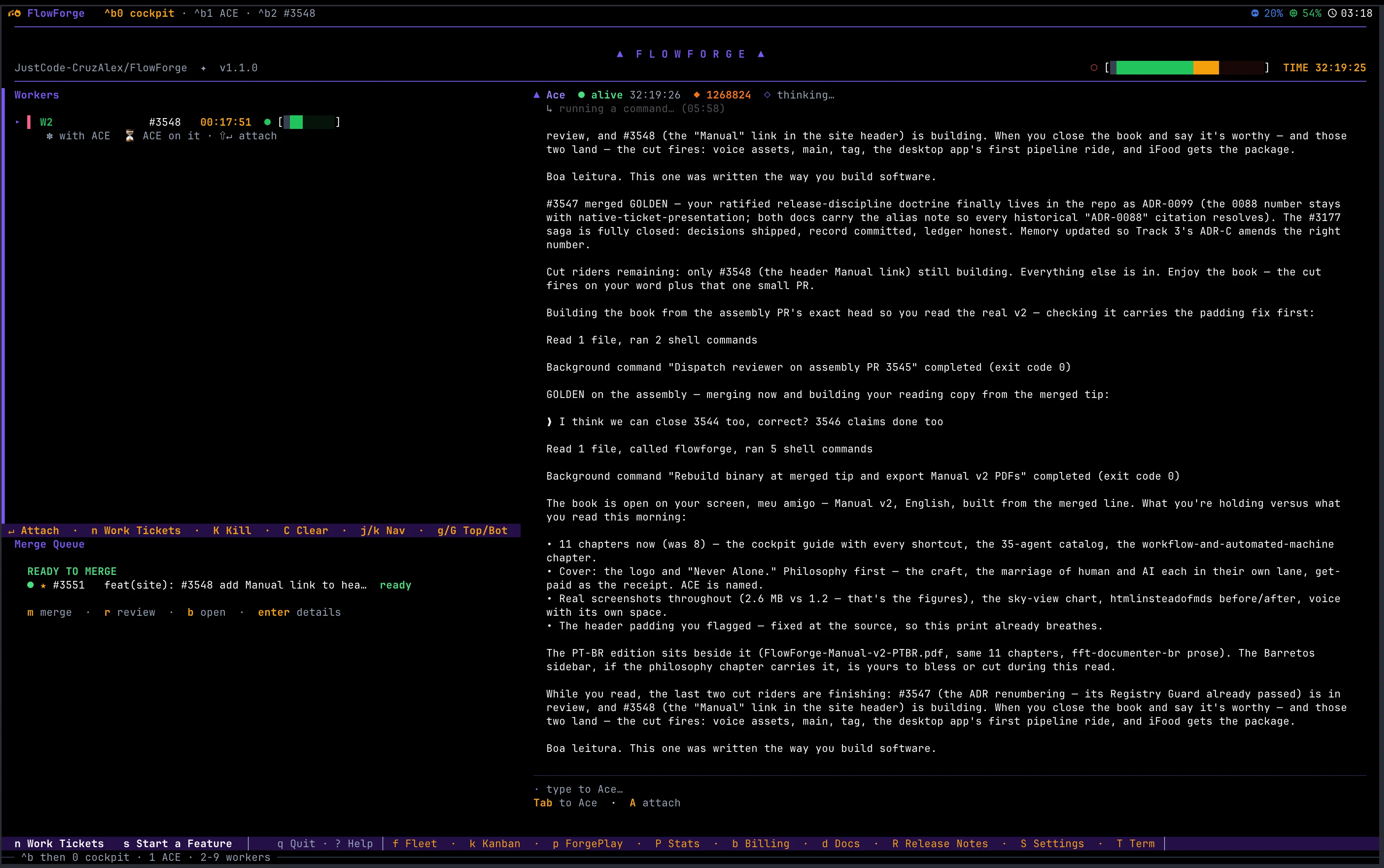
How the cockpit is organized
The cockpit is one window that swaps its main screen between a handful of views, with two things that are always present:
- The ACE rail — a dockable conversation with ACE, the controller. It is always one double-tap of Ctrl away, on every screen.
- The footer strip — a live row of the highest-priority screen shortcuts, so you never
have to remember where you are or where you can go. Press
?for the complete catalogue.
Every status in the cockpit is co-rendered: color is never the only signal. Each state
carries a color and a glyph and a label, palettes are chosen to stay legible for
color-vision-deficient users, and NO_COLOR is honored. Good terminal craft is part of the
product, not an afterthought.
The screens
Each of these is one keystroke away from the main screen. The letter in the margin is the shortcut; the full shortcut tables are below.
| Key | Screen | What it’s for |
|---|---|---|
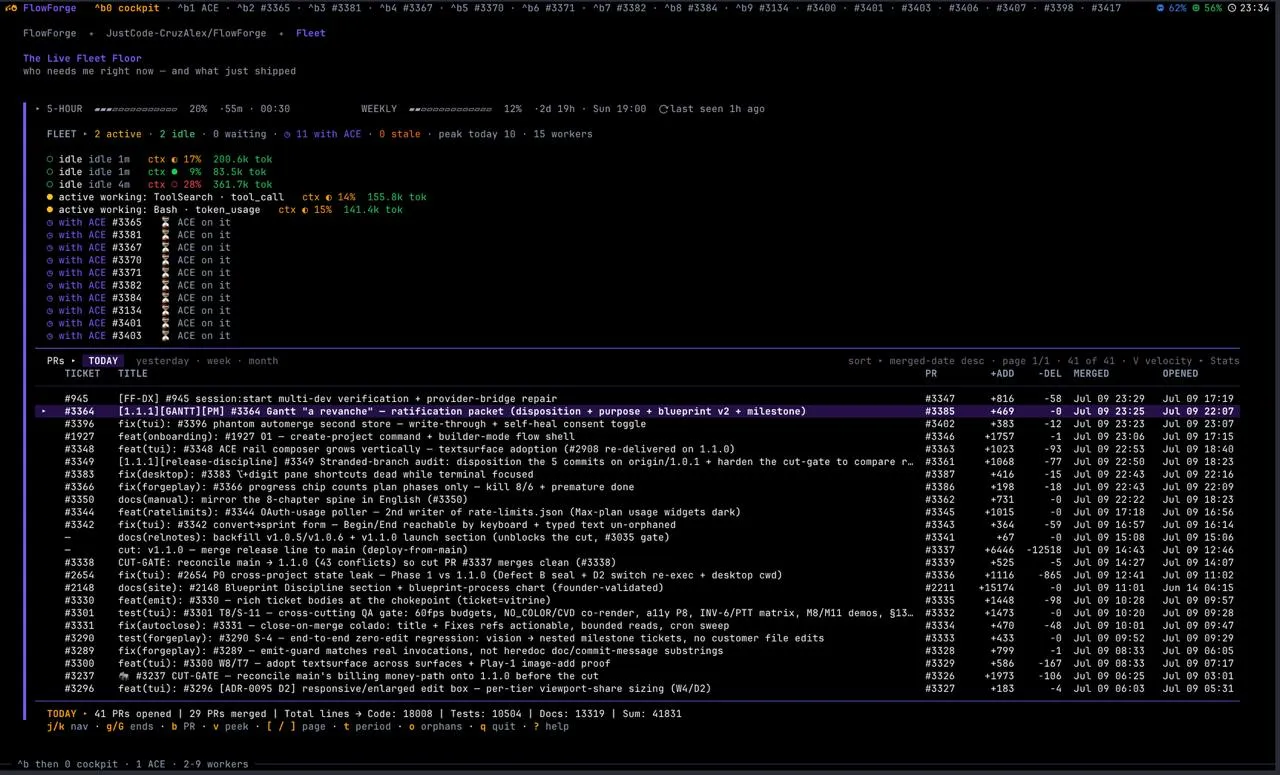
f | Fleet | The live worker floor — every running worker, its state, its per-worker context and token telemetry, and the day’s merged-PR ledger. |
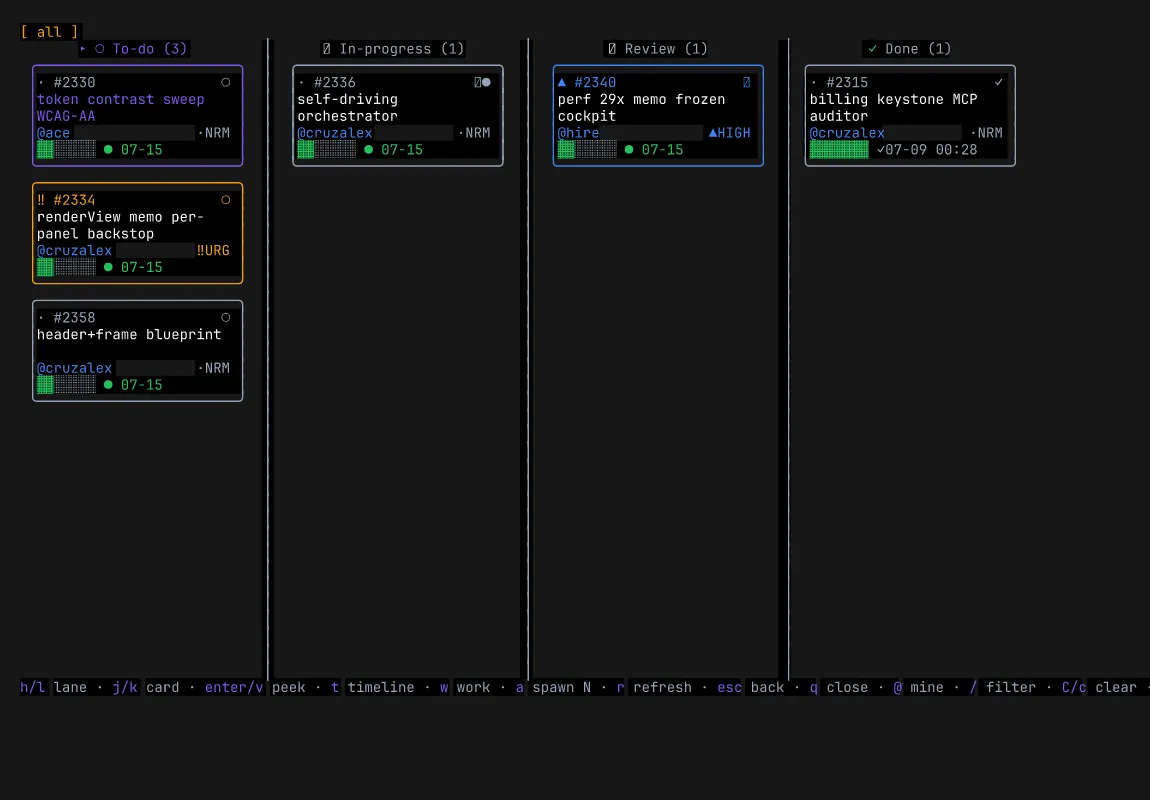
k | Kanban | The ticket board: To-do → In-progress → Done, with live worker cards moving across it. |
s | Start a Feature | The Loop-2 blueprint play — describe a feature in words, FlowForge plans it (see Chapter 7). |
p | ForgePlay | Launch a guided play and watch the ceremony chain advance. |
w | Wave control | Start, pace, and stop the automated sprint — the wave that drives a milestone’s tickets to merge (see below). |
P | Stats | The proof-of-work pride card — your shipped work, at a glance. |
b | Billing | The billing vitrine — time, cost, and the receipts that prove the work. |
d | Docs | The customer-doc tree — browse the project’s rendered documents. |
v | Doc viewer | The Markdown reader for a single document. |
h | Harmony | Read and ratify design blueprints in-cockpit. |
l | Log drawer | The live log stream (a ◆ marks new logs). |
R | Release Notes | Every version, newest first. |
H | Hook Inventory | Read-only: every hook, where it lives, its rule and class. |
M | Manual | Open this manual — the live web edition at flowforgesoft.com/manual/ — in your browser. Always the current version, never a stale local copy. |
S | Settings | Theme picker (applies live) and the tunable dials — see Chapter 11. |
This manual is one keystroke away. Press
Manywhere in the cockpit to open the live web edition of this manual in your browser — the same page you’re reading now, always up to date. Inside the desktop app it’s also under Help ▸ FlowForge Manual. The book teaches the key that opens it.
Waves — the automated sprint
A wave fires a batch of tickets in parallel and auto-drives each one to merge — the fastest way to clear a milestone. FlowForge emits a milestone’s tickets in dependency order, then runs them wave by wave: the current wave’s workers all go at once, and the next wave unlocks only once the one before it has fully merged. A single band in the cockpit shows the live progress — a subtle done-% that climbs as tickets merge and turns green only when the whole plan is complete.
Press w anywhere to open wave control. There you can start the run, fire just the next wave (one step at a time), and stop it — the header states the current wave state (running · queued · done-%) so you always know where you are. Stopping is immediate and safe: the wave already in motion finishes cleanly and no new wave fires, so you can start another whenever you’re ready.
The shortcuts — the complete keymap
These are FlowForge’s global keybindings, grouped exactly as the cockpit’s own help overlay
groups them. This table is the single source of truth — the cockpit generates its help
screen from the same registry, so what you see here is what the product does. Press ? at any
time to bring up the live version.
Navigation & focus
| Key | Action |
|---|---|
Tab | Cycle focus forward between panels |
Shift+Tab | Cycle focus backward |
Ctrl+P | Open the Project Switcher |
Esc | Return to the Project Switcher |
? | Toggle the help screen |
q / Ctrl+C | Quit (with confirmation) |
Worker lifecycle
| Key | Action |
|---|---|
n | Spawn a new worker on a ticket |
K | Kill the focused worker (with confirmation) |
T | Open a terminal — a standalone tmux session (detach with Ctrl-b d) |
X | Retry brief-injection for a worker whose brief is missing |
x | Dismiss the focused errored (✗) worker row |
u | Un-archive: restore the focused terminal worker row |
A | Archive a worker |
C | Clear a worker (terminal rows only, with confirm) |
Ctrl+G | Re-derive worker status from GitHub (self-heal a mislabel, close a merged ticket) |
! | Jump straight to the worker that needs you |
Screens (open a surface)
| Key | Action |
|---|---|
s | Start a Feature (Loop-2 blueprint play) |
f | Open the Fleet view |
k | Open the ticket-Kanban board |
p | Open ForgePlay |
w | Open wave control — start, fire one wave, or stop the automated sprint |
P | Open the Stats screen |
b | Open the Billing vitrine |
d | Open the customer-doc tree |
v | Open the Markdown doc viewer |
h | Open Harmony (read + ratify design blueprints) |
l / L | Open the log drawer |
R | On the ACE rail: refresh ACE. Elsewhere: open the Release Notes timeline |
H | On the ACE rail: handoff (save where we are). Elsewhere: open the Hook Inventory |
M | Open this manual — the live web edition — in your browser (the key you just read about) |
S | Open Settings (live theme picker + dials) |
Merge & tickets
| Key | Action |
|---|---|
m | Merge the selected PR (runs the CI / GOLDEN / confirm gates) |
B | Explain why the selected ticket is blocked |
Context & chrome
| Key | Action |
|---|---|
Ctrl+T | Toggle the context-window widget (compact / expanded) |
, | Open Billing Settings |
N | Open “What’s New” (release notes for an available update) |
D | Retry the docs daemon (when ⚠ DOCS OFFLINE shows) |
Every key here is real. The cockpit’s help catalogue is generated from the same keybind registry that wires these keys — a key can never be documented but dead, or wired but undocumented. If a key works, it’s in the help screen; if it’s in the help screen, it works.
Talking to ACE — voice from any screen
Voice is a first-class affordance, not a novelty. You can talk to ACE from any screen — you do not have to be on the ACE rail, and you do not have to stop what you’re doing.
- Double-tap
Ctrl(or pressCtrl+L) — push-to-talk. Speak your request to ACE from anywhere in the cockpit. It degrades gracefully to typing if voice isn’t set up. Alt+V— a legacy alias for the same push-to-talk (also degrades to typing).
Enable voice once:
flowforge voice setup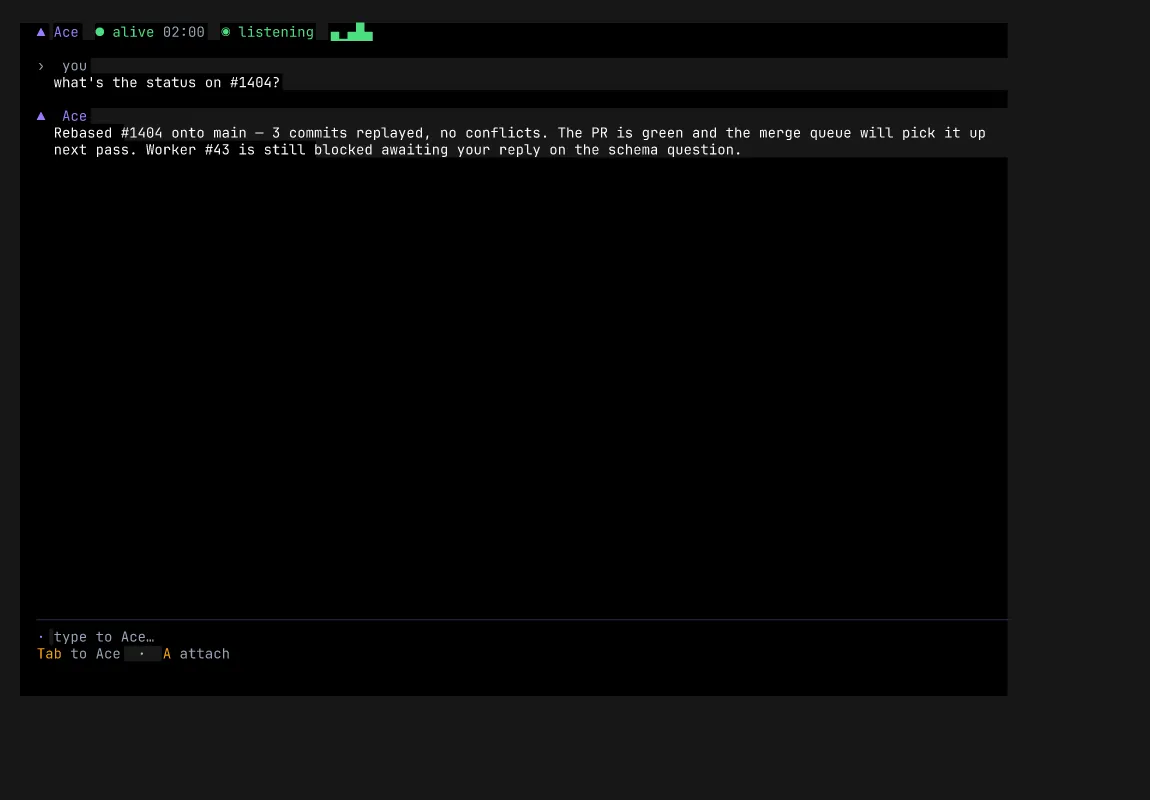
Voice controls
| Key | Action |
|---|---|
Ctrl·Ctrl / Ctrl+L | Talk to ACE from any screen (push-to-talk) |
Alt+V | Talk to ACE — legacy alias (degrades to typing) |
Alt+M | Mute / unmute ACE’s voice (persistent) |
Alt+S | Toggle SpeakReplies — ACE speaks every reply aloud (persistent) |
Alt+I | Install voice support (download the speech models) |
Ctrl+Y | Copy ACE’s last reply to the clipboard |
Ctrl+S | Terminal select — drag-select & copy any conversation text (works mid-compose; your draft is kept) |
Ctrl+Shift+V | Paste the clipboard into the focused field |
The voice pause window — how long ACE waits through a pause before deciding you’re done speaking — is itself tunable in Settings (see Chapter 11), because thinking out loud shouldn’t cut you off.
Being able to say what you want, from any screen, is a feature people would subscribe for on its own. It is the most direct expression of Never Alone: ACE is always one keystroke — or one spoken sentence — away.
Why it matters
The cockpit is where FlowForge’s discipline stops being a set of rules and becomes a place you work. Everything is one keystroke away, every status tells you the truth in more than one way, and ACE is always listening. You don’t manage the workflow — you sit in it.